Cloud QMS
Browser and TV display
Best when customers remain on-site and can follow their number through the browser or waiting-room display.
- QR code queue entry
- Browser-based staff portal
- Live queue and TV display
- Reports and queue history
Customers scan a QR code and join the queue in their browser. Staff see who is waiting, call the next customer and review activity from any device. WhatsApp notifications can be switched on when customers need to wait away from your premises.
The portal, queue controls, TV display and reports are the same. The only add-on is how customers receive notifications.
Best when customers remain on-site and can follow their number through the browser or waiting-room display.
Best when customers may leave the waiting area and need ticket, call or recall messages on their phone.
A complete queue flow without a ticket printer, kiosk or local queue server.
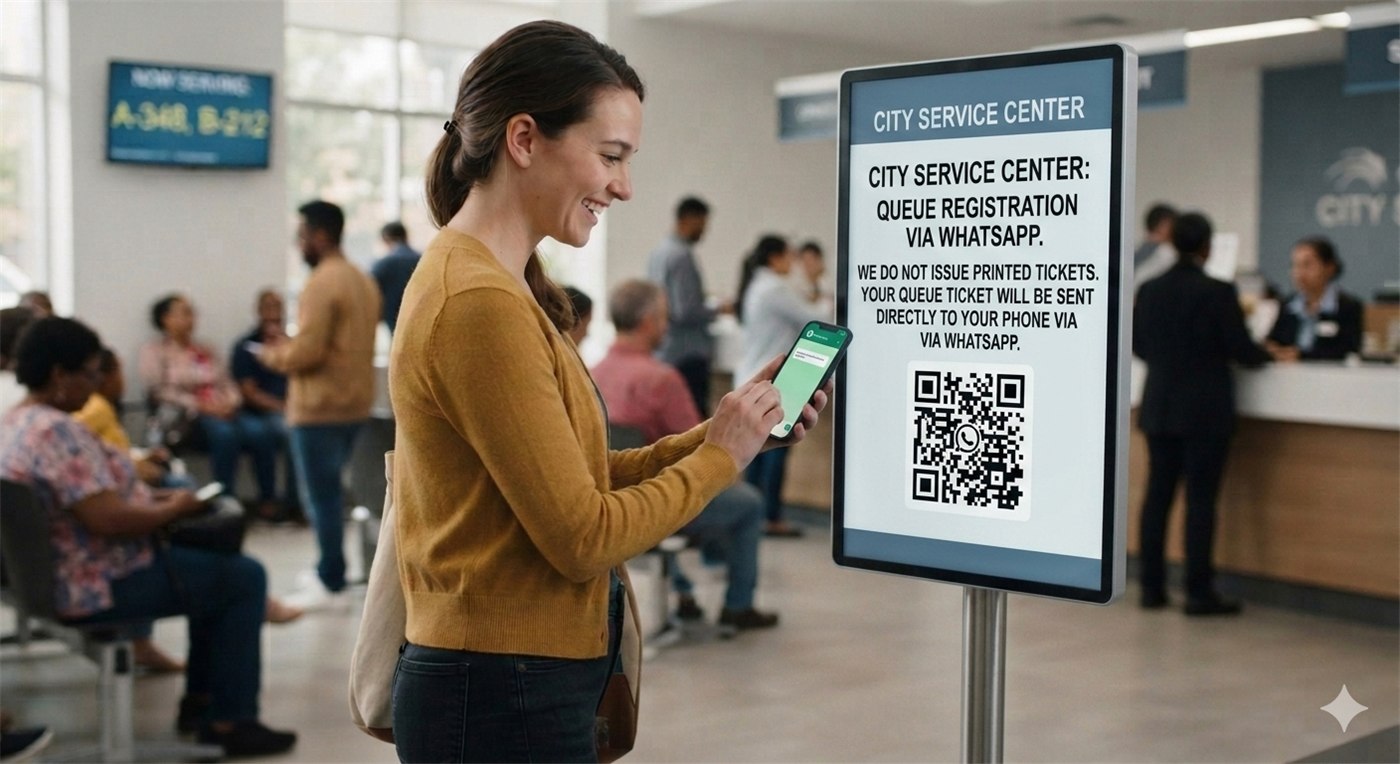
The customer points their phone camera at your QR code and opens the secure queue page.
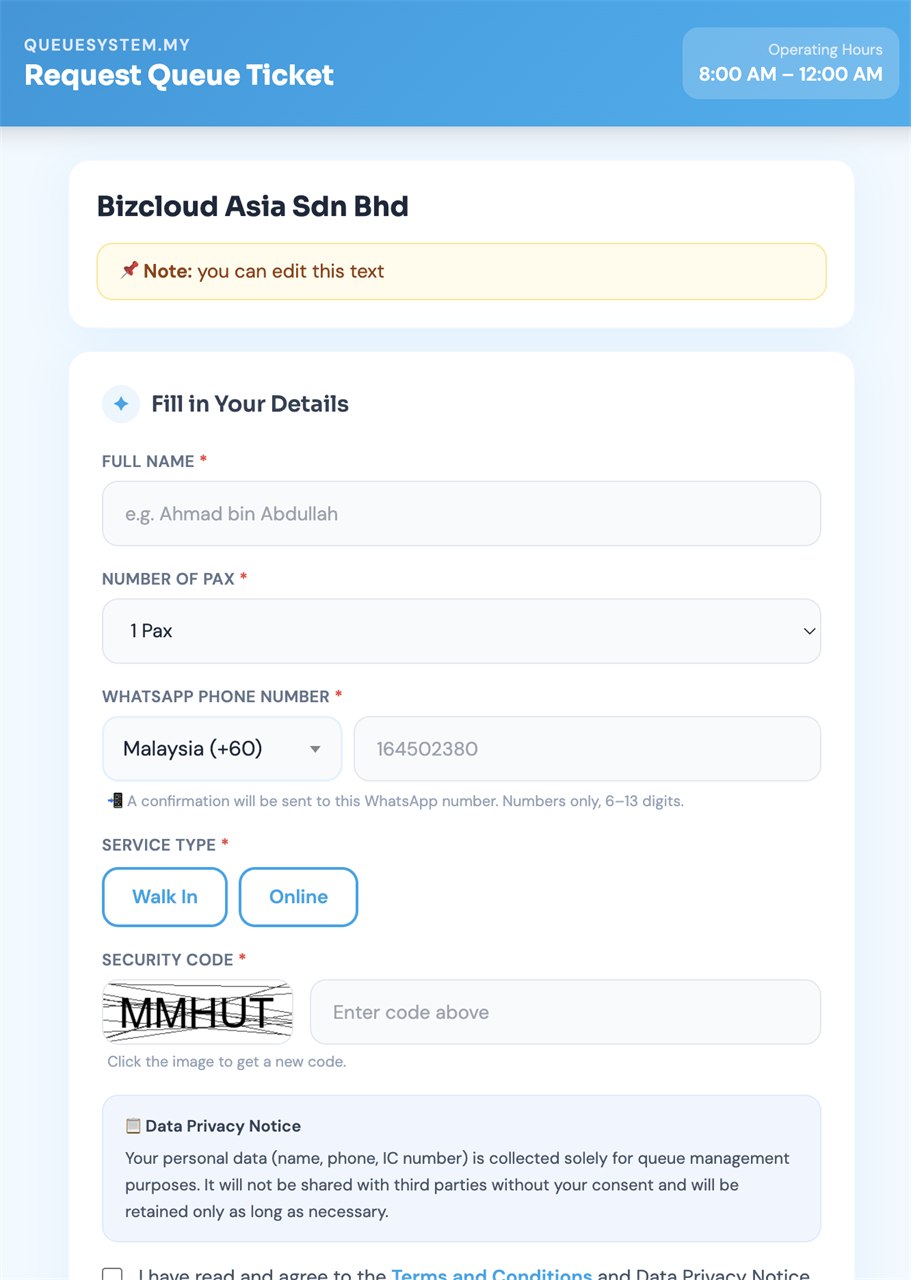
They choose a language, select the required service, enter their details and receive a queue number.
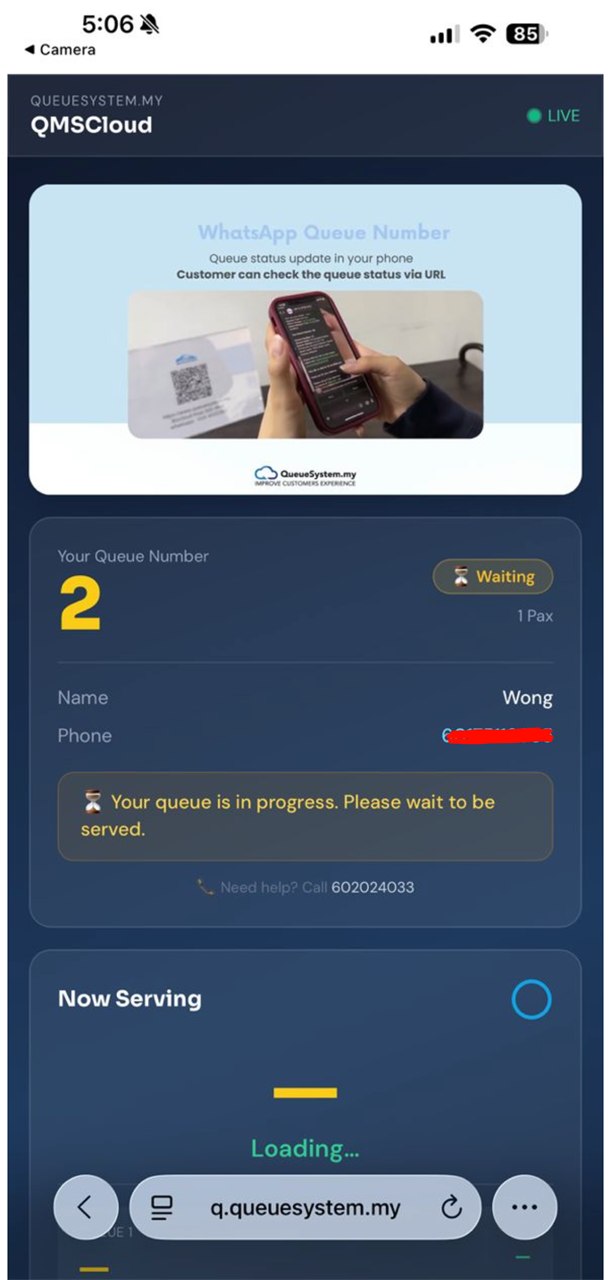
The browser shows their number, current status and how many customers are still ahead.
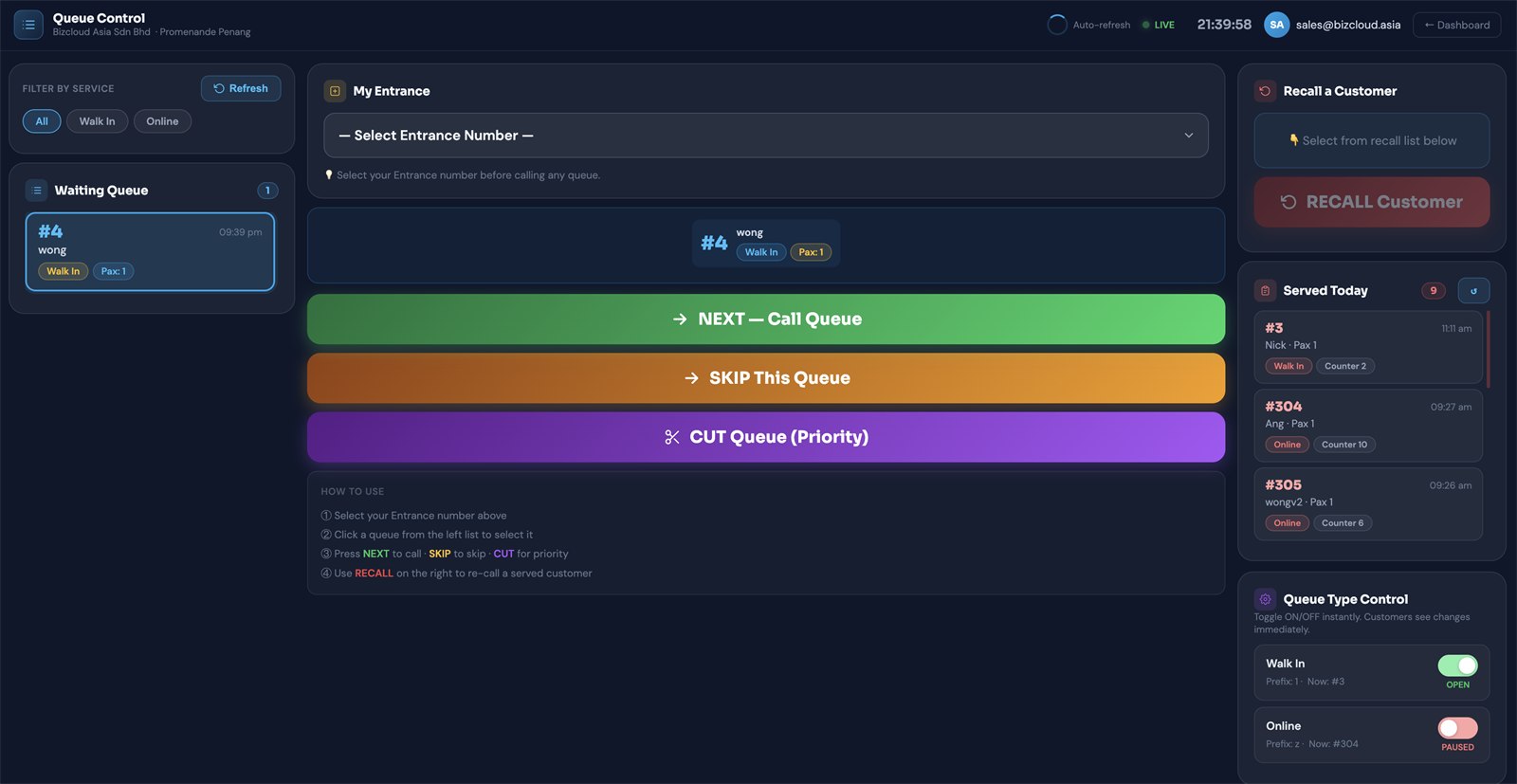
Staff press NEXT in the portal. The live queue and optional TV display update immediately.
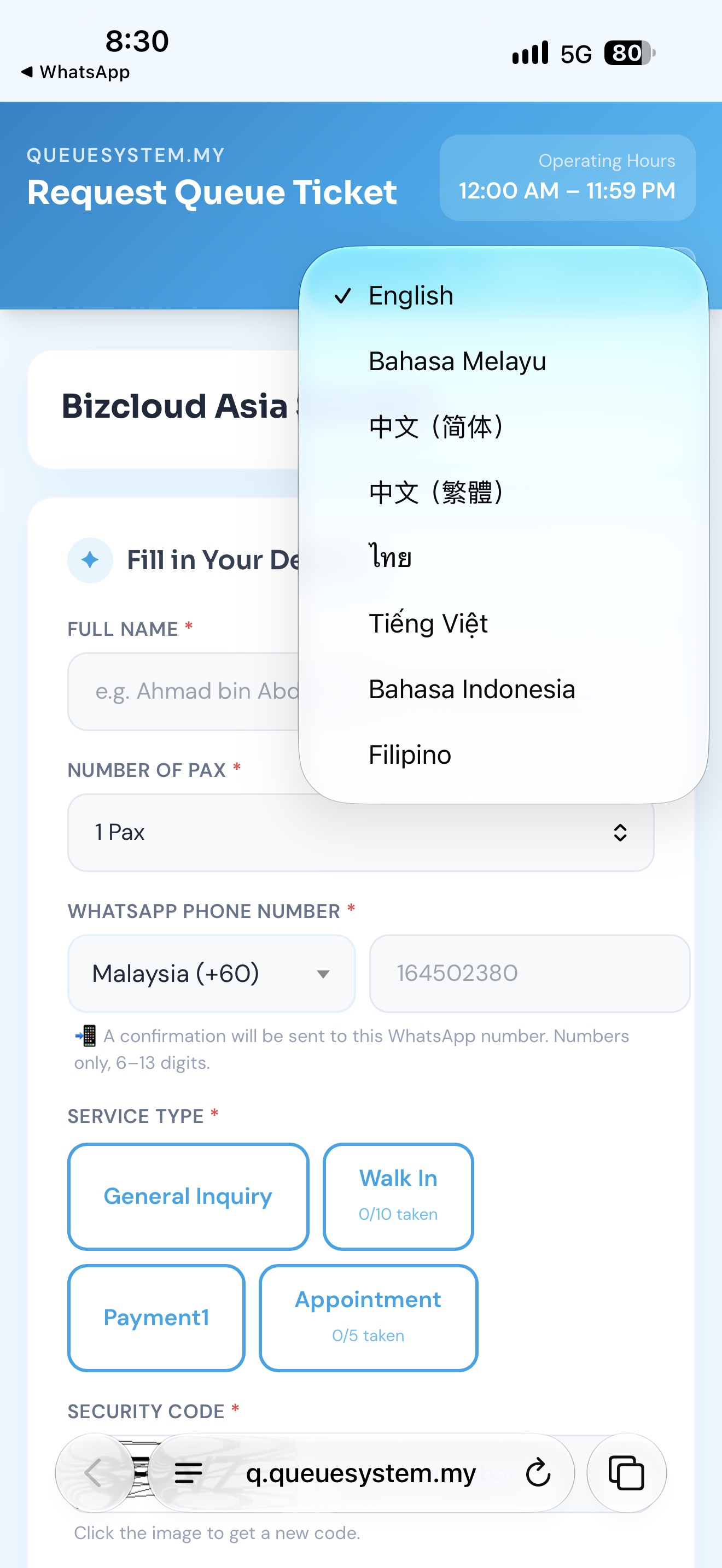
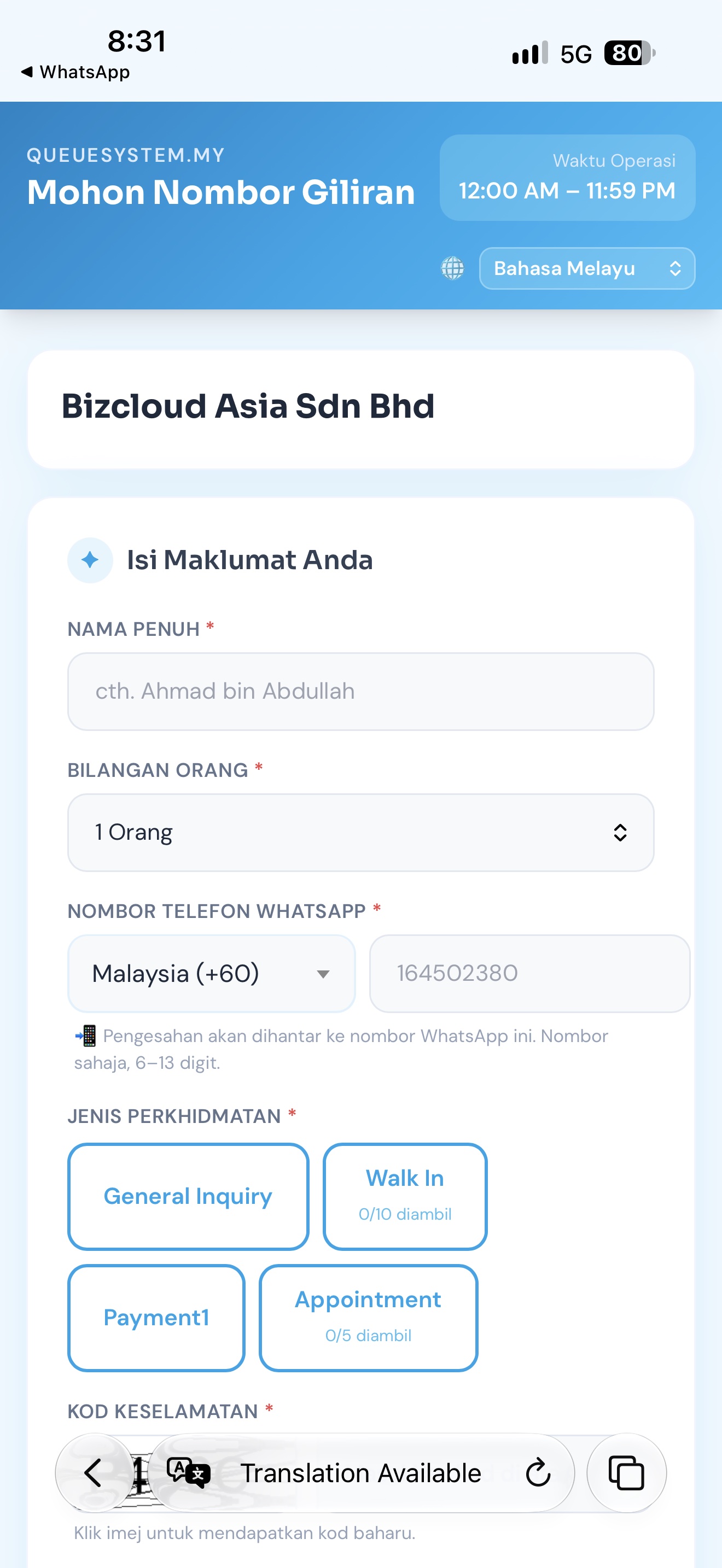
A queue request page in eight languages, plus time-zone selection for businesses beyond Malaysia’s UTC+8. Available on the shared Cloud QMS and WhatsApp Queue platform.
Customers use the language selector on the queue request page to read the form labels and instructions in their preferred language. It makes joining easier for local communities, tourists and international visitors.
Time-zone selection lets you configure the queue system for your business’s local time instead of being limited to UTC+8. This helps businesses outside Malaysia use the system in their own time zone.
Planning an overseas setup? Tell us your location and the languages your customers use so we can help you get started.
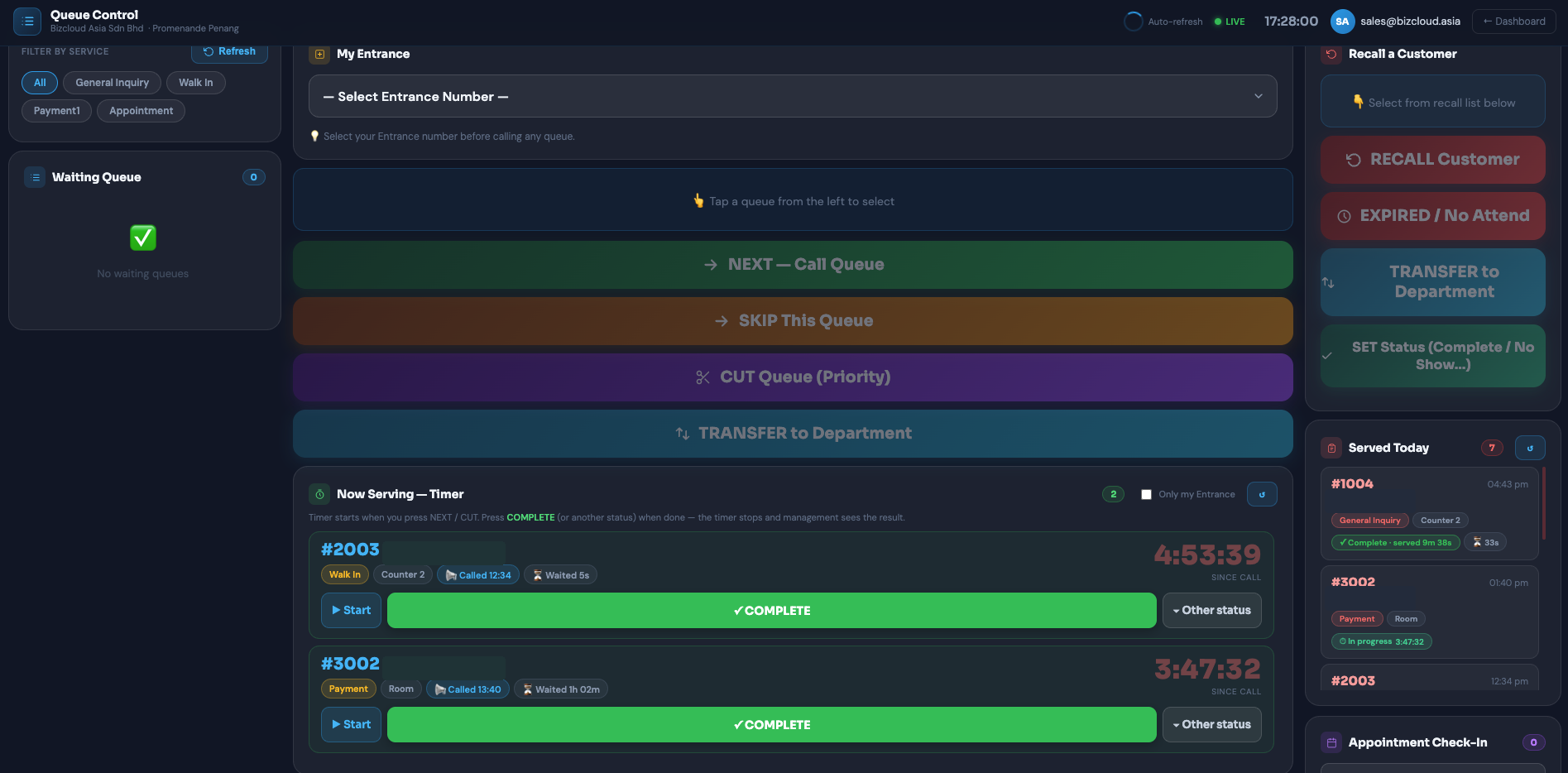
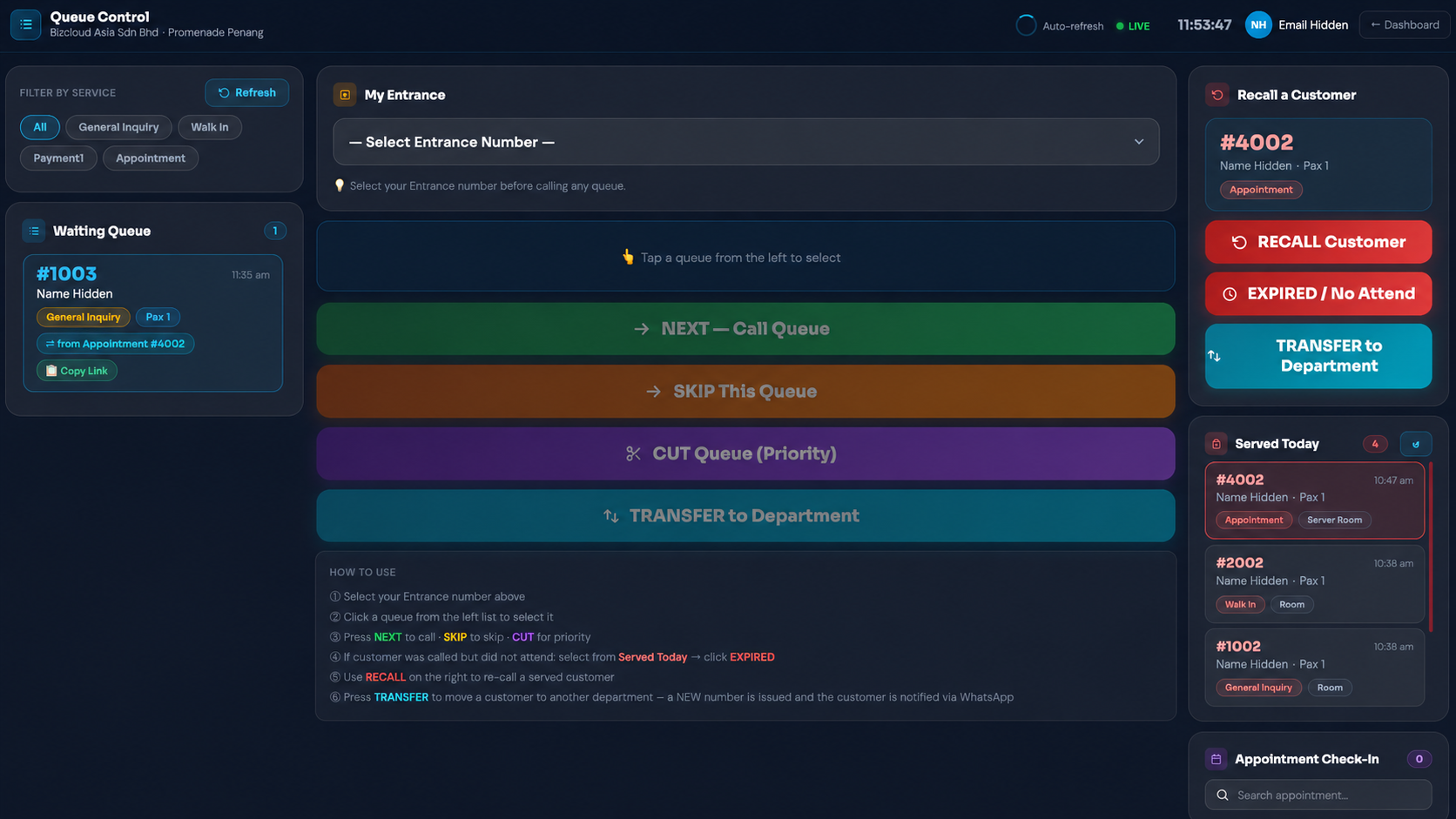
The live queue manager gives staff one clear working screen. They can see new arrivals, call the next number, recall a customer or transfer a queue request without installing counter software.
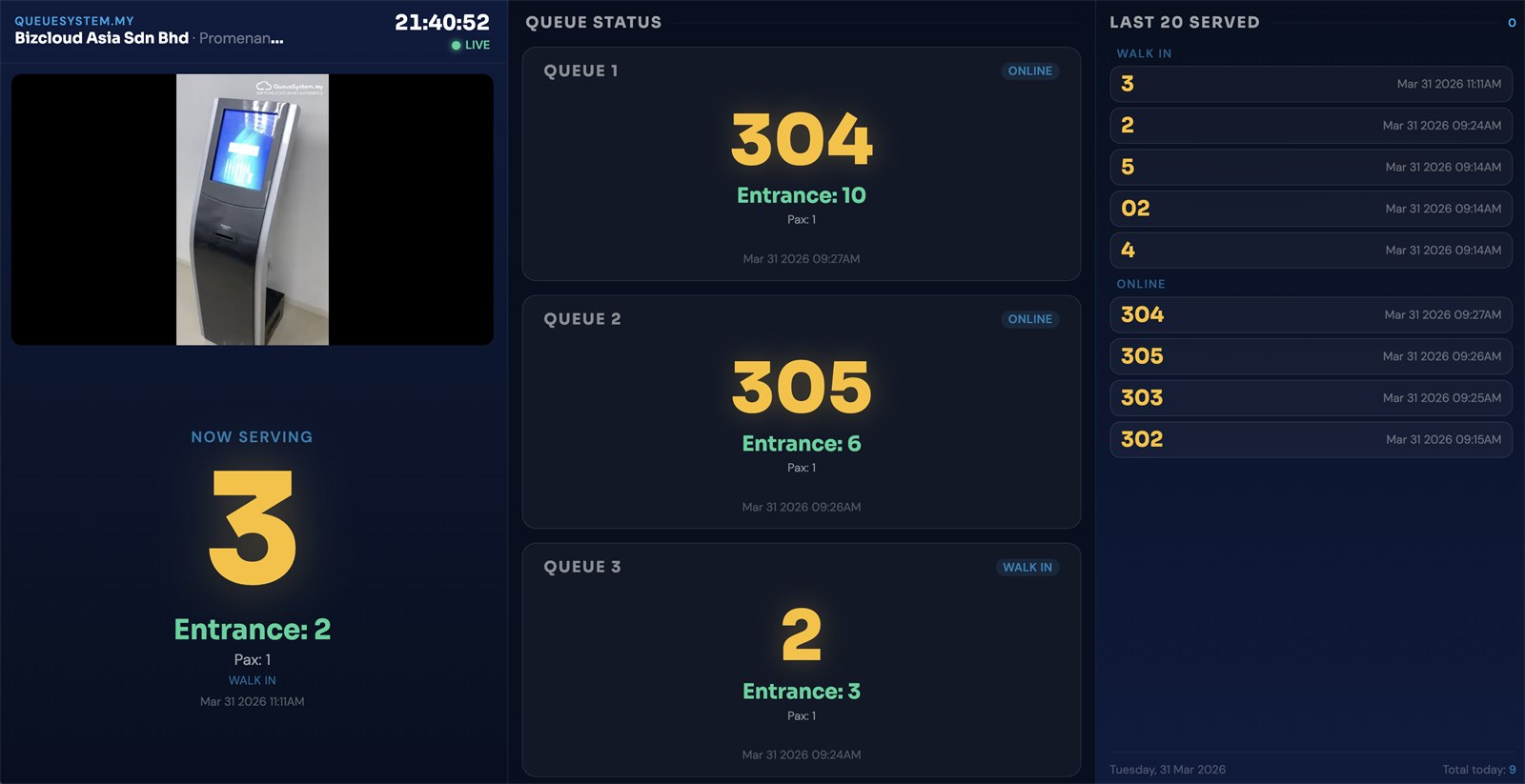
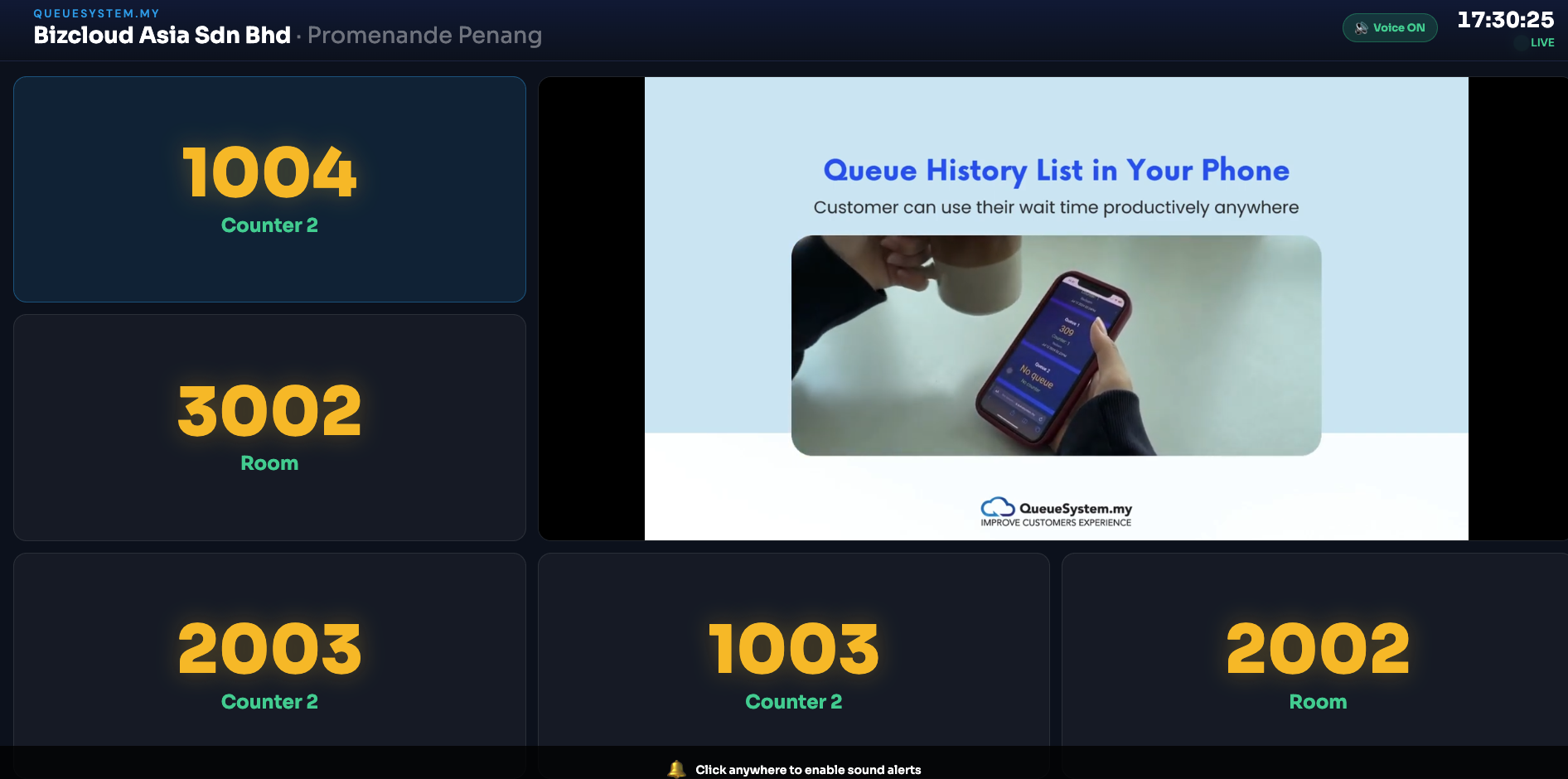
Open the TV display page on a smart TV, computer or media device. Customers who remain on-site can see which number is being served and where to go.
Transfer a customer to the next service, issue the correct new queue number and keep their complete journey connected from the first department to the last.
Select a waiting or served customer, choose the destination department and add an optional remark for the next team.
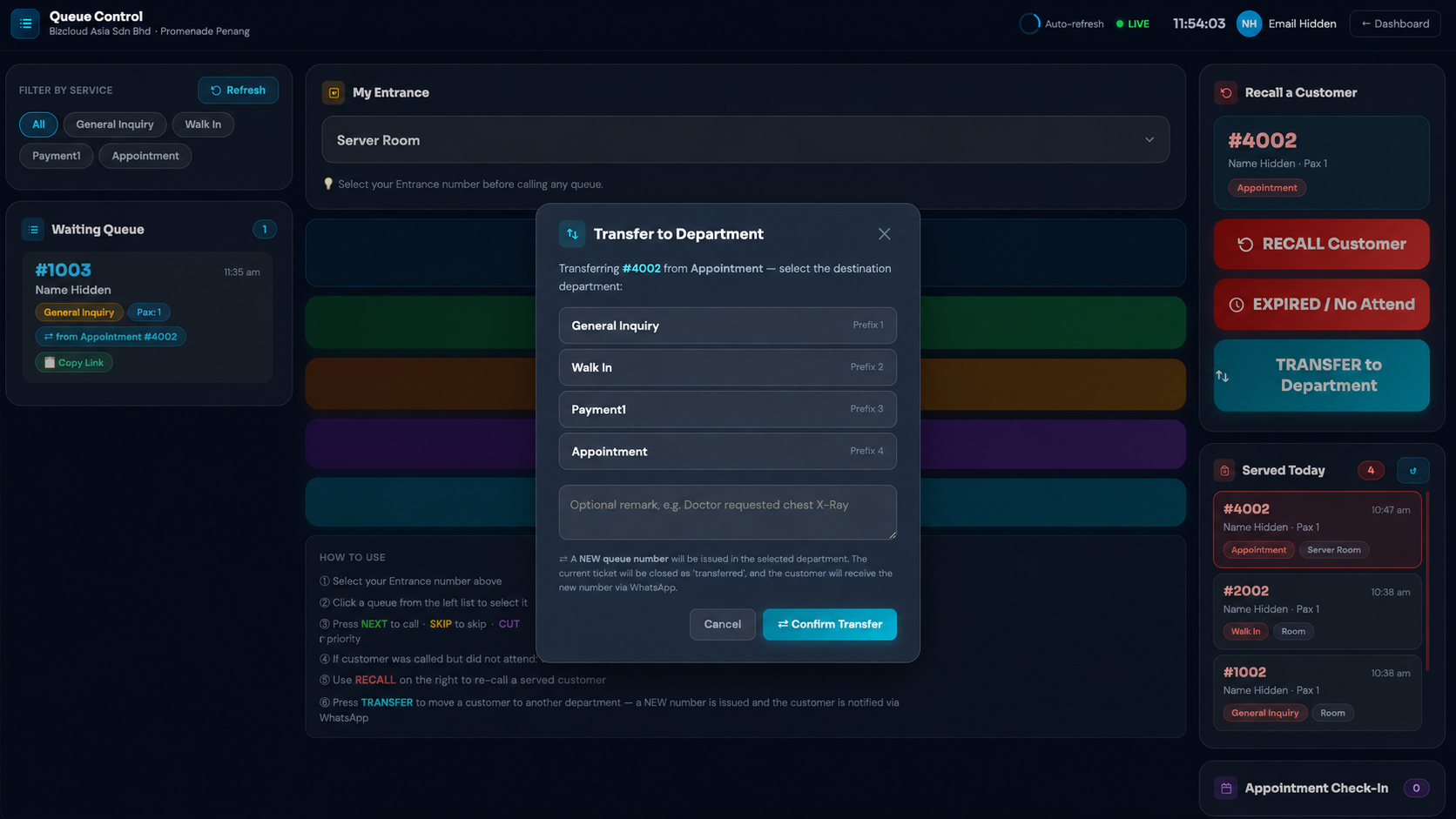
The transfer dialog shows available departments and allows staff to include a useful handover remark before confirming.
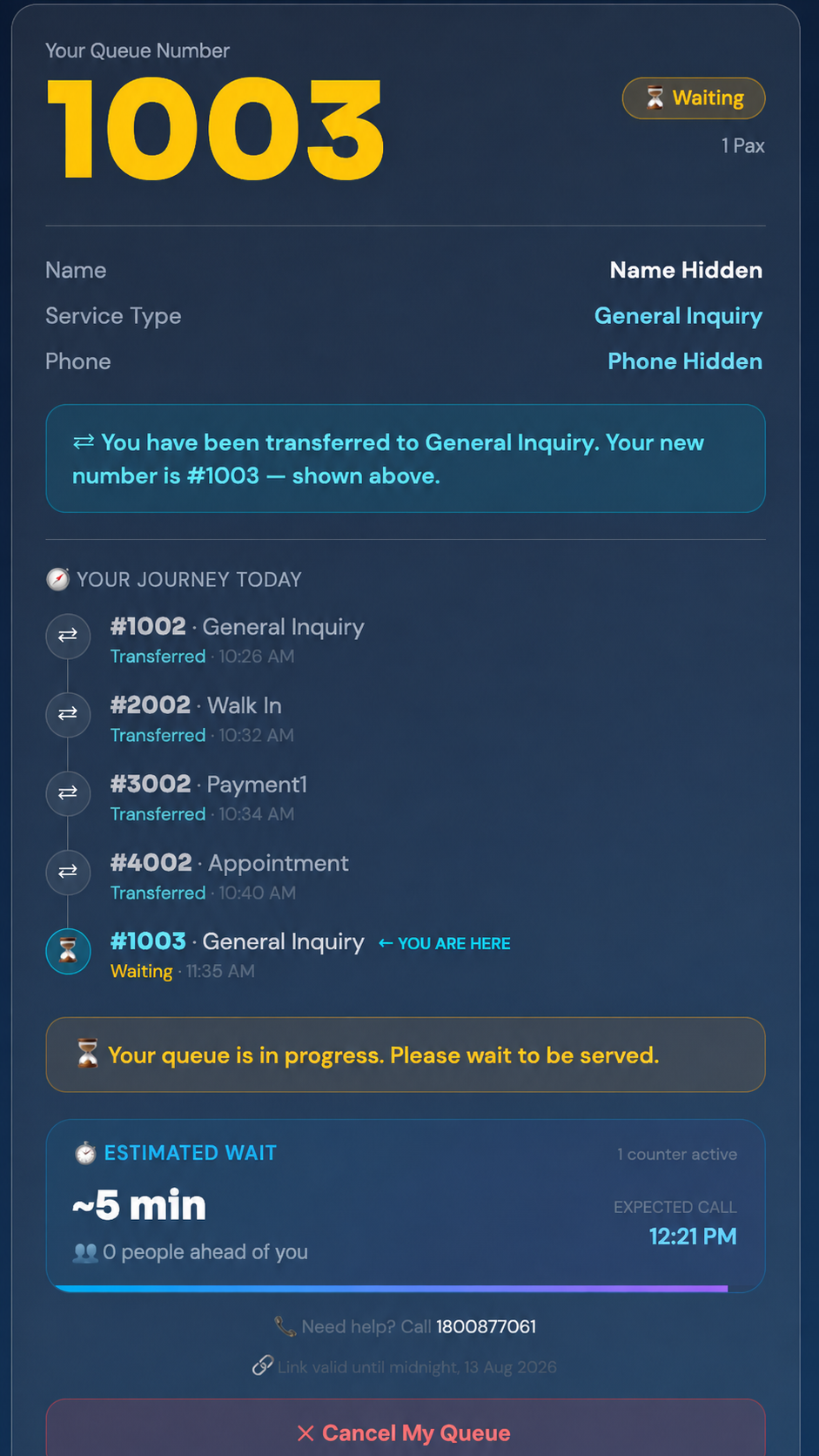
The live e-ticket updates with the new number, department, position and every earlier stop.
Managers can review transfer volume, common routes and the full history behind each queue request.
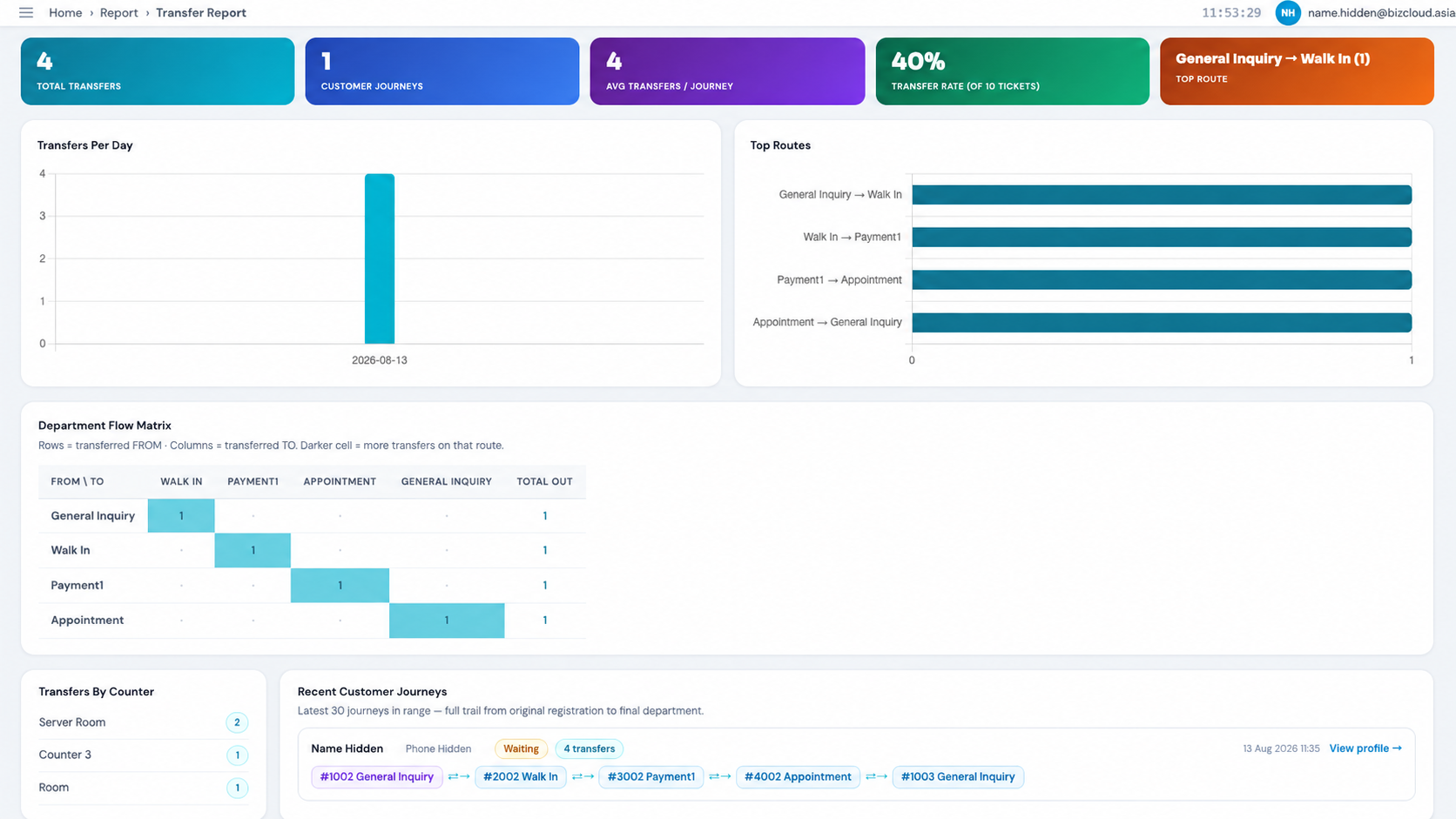
Track total transfers, transfer rate, popular department routes, counter activity and recent multi-step customer journeys.
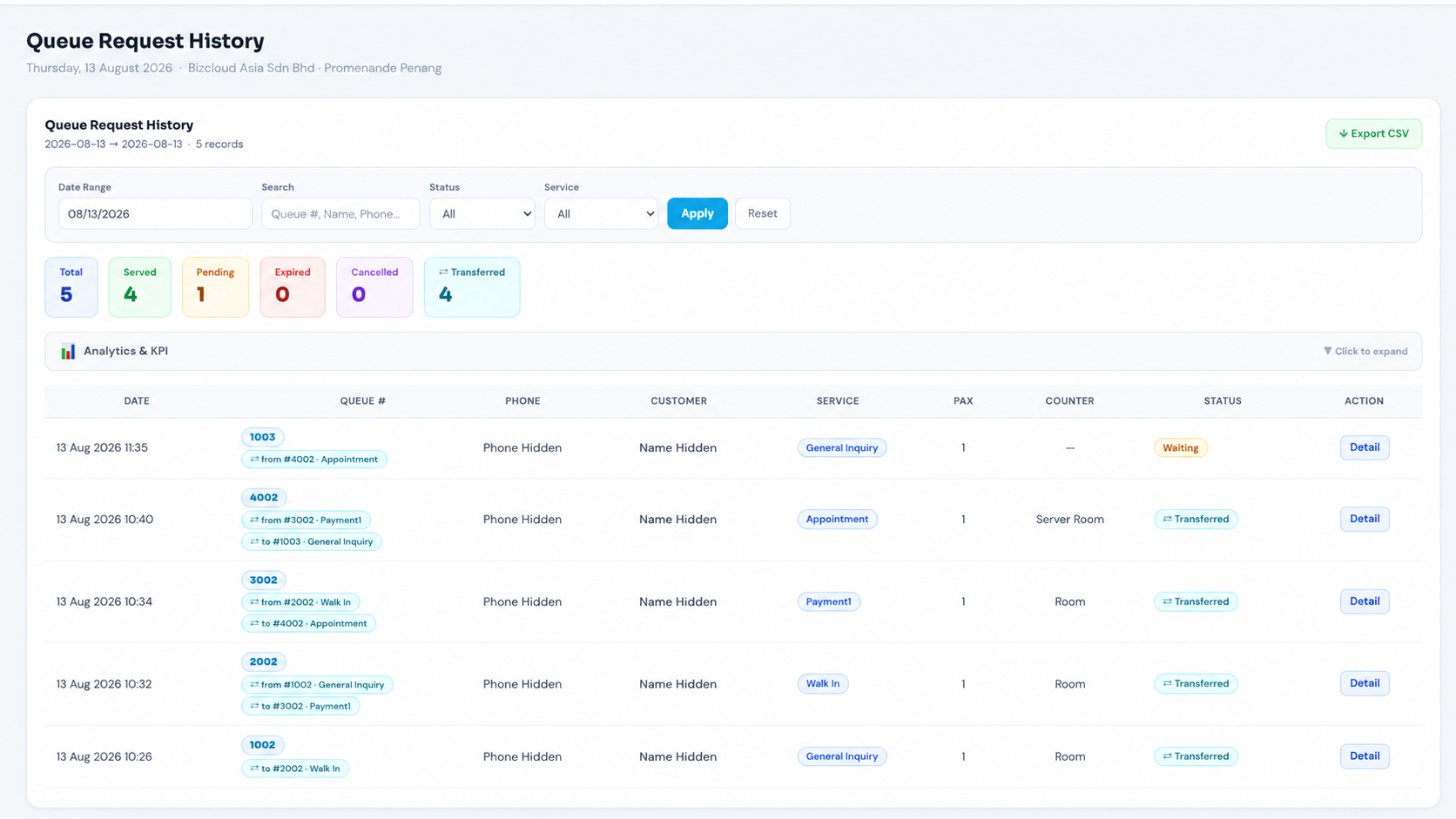
Filter queue requests and immediately see transferred status, previous number and next destination.
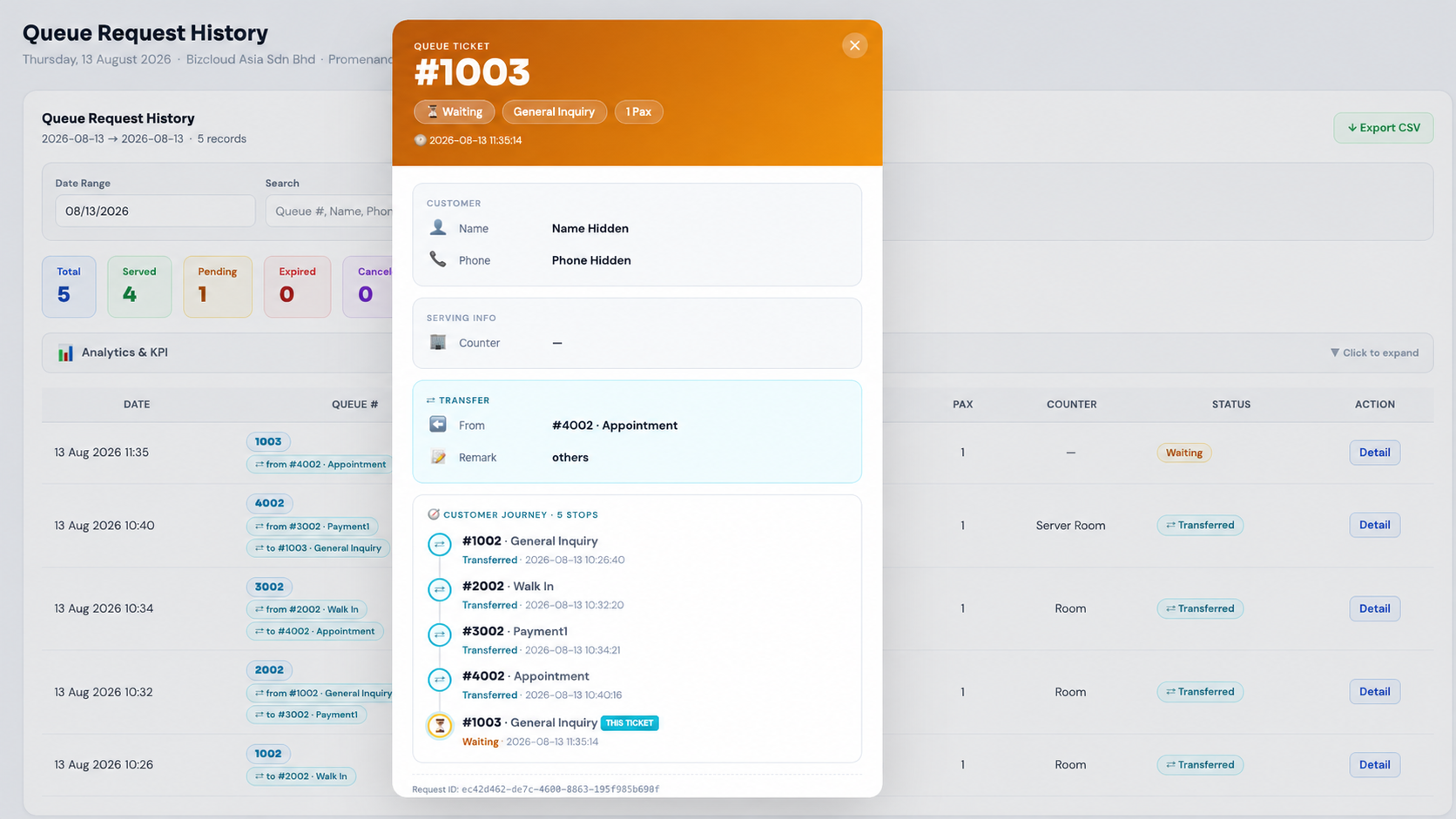
Inspect the source department, handover remark, timestamp and every ticket issued throughout the visit.
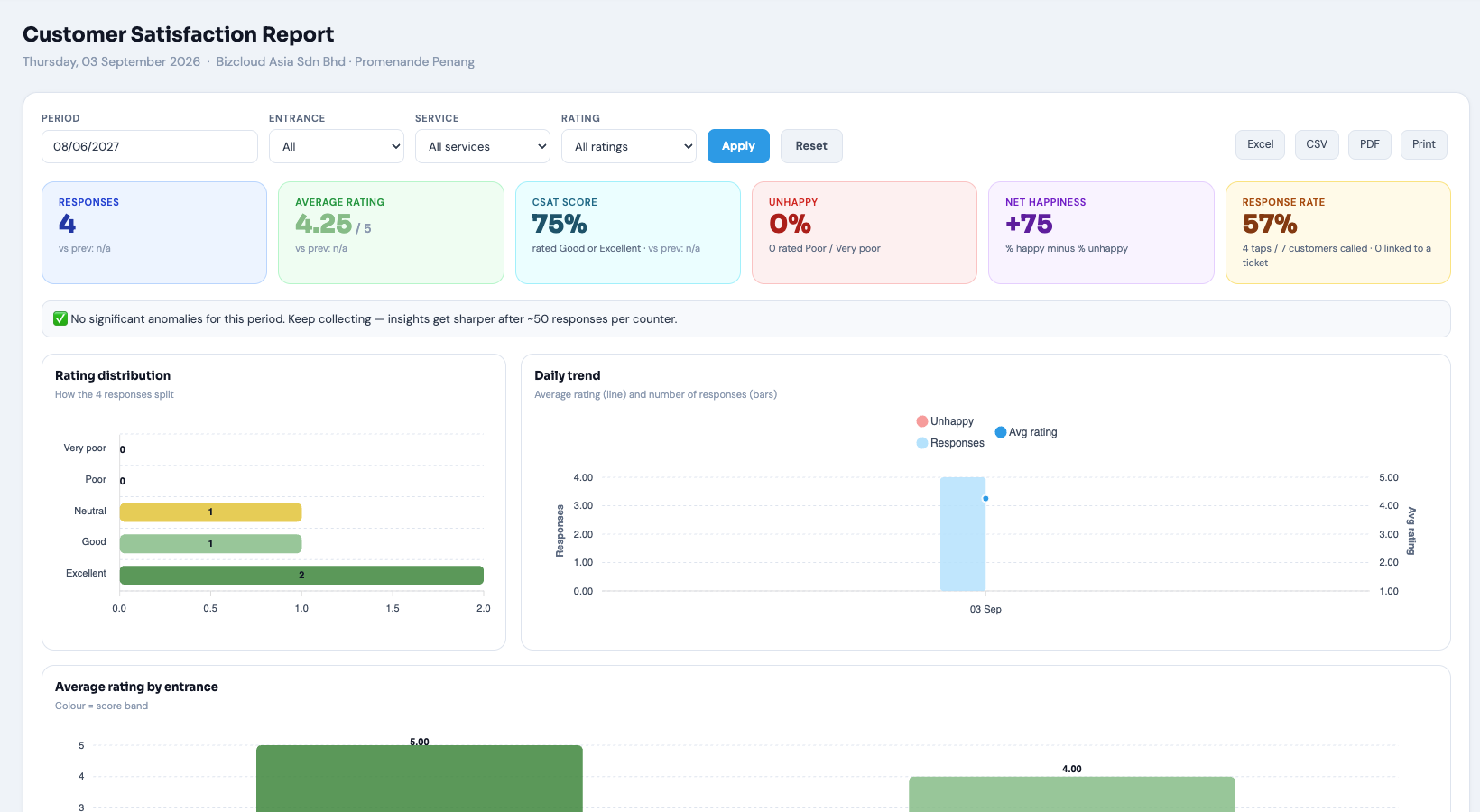
Three additions to Cloud QMS, each optional and switched on per company. The first two together answer the question every service business asks: does faster service make customers happier?
Customers tap one of five faces on a tablet before they leave. Each counter has its own link, so the rating is matched to the ticket just served and, with the timer on, the minutes it took.
A live clock on every called ticket, one tap to Complete, No Show or Cancelled, and a Serve Status Report with waiting time, serving time and completion rate per counter.
How the timer works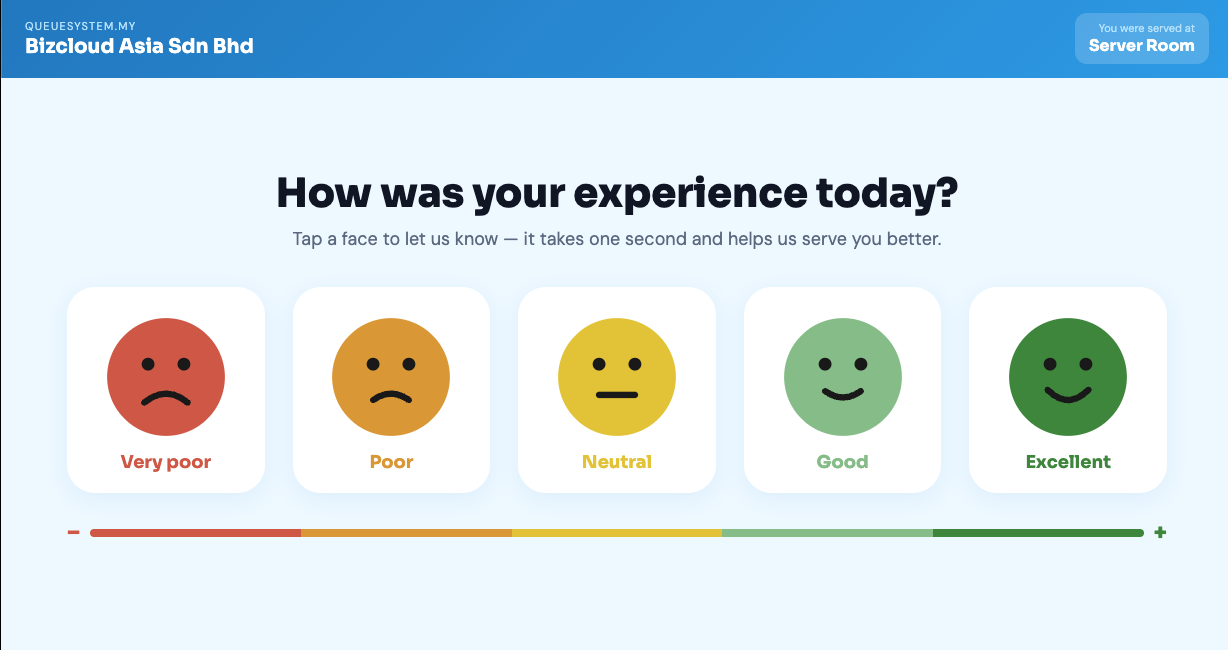
Open a link on any tablet. Customers tap a face, see a thank-you, and the screen resets. Links and printable QR codes come from the portal, one per counter.
See the kiosk and report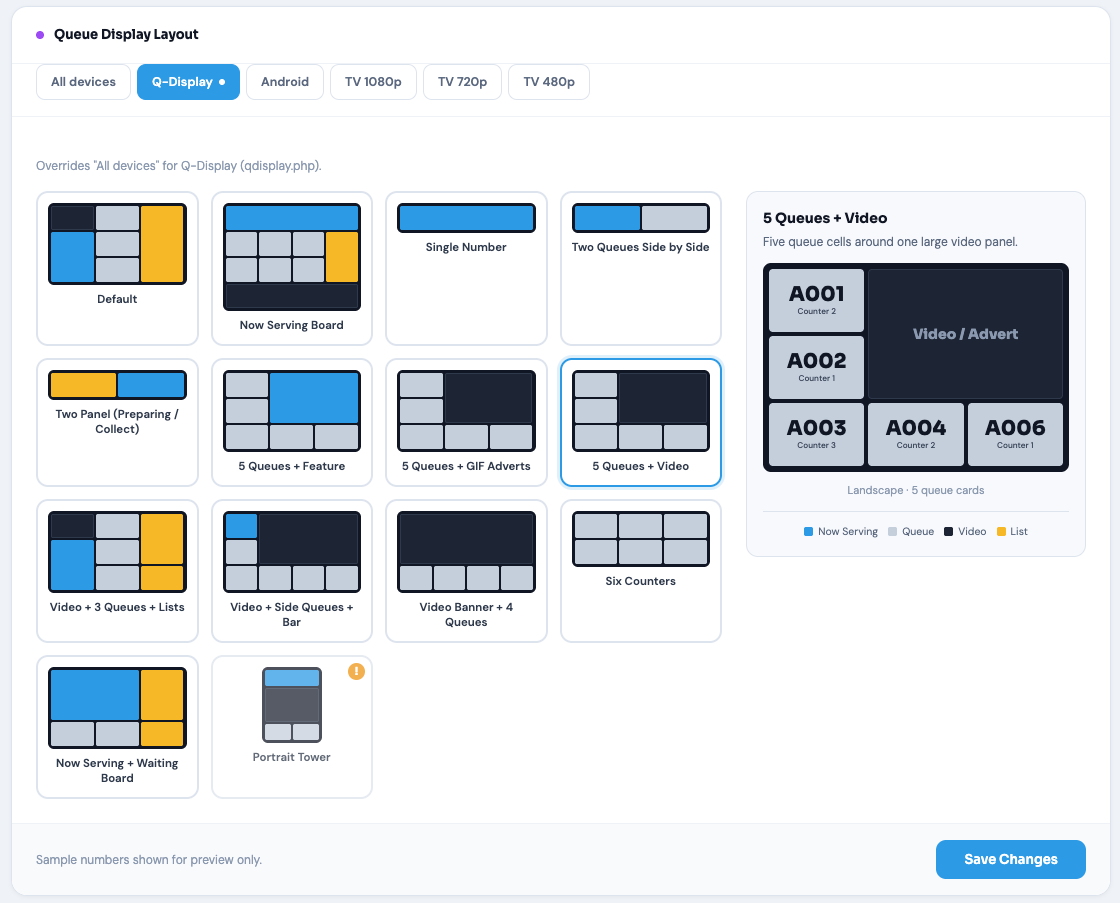
Choose the TV layout from visual thumbnails with a live preview, set one for every screen or a different one per device, and the change reaches the screen on its next refresh.
Browse the layoutsChoose the customer notification method that fits your waiting environment.
| Capability | Cloud QMS | Cloud QMS + WhatsApp |
|---|---|---|
| Customer joins using QR code | Included | Included |
| Live browser queue ticket | Included | Included |
| Staff queue manager | Included | Included |
| TV queue display | Included | Included |
| Reports and analytics | Included | Included |
| Department transfer and journey history | Included | Included |
| Serve timer and Serve Status Report | Included | Included |
| Customer Satisfaction Kiosk and report | Included | Included |
| TV display layout picker | Included | Included |
| WhatsApp ticket and call alerts | Not required | Enabled |
| Best waiting style | Customers remain nearby | Customers may wait anywhere |
Customers scan the QR code, enter their name and choose a service — no phone number required. They follow their turn on the TV display and live status page.
Queue without a phone numberStart without a ticket printer, kiosk or local QMS server. Use the devices and displays you already have.
Authorised staff can access the same cloud platform wherever they are working.
Review queue volumes, waiting and serving times, customer satisfaction and service history from the administration portal.
Cloud QMS now supports selectable time zones, so your setup is not limited to Malaysia’s UTC+8. The queue request page also offers eight language options for customers. Contact us with your business location to discuss your setup.
The queue request page supports English, Bahasa Melayu, Simplified Chinese, Traditional Chinese, Thai, Vietnamese, Bahasa Indonesia and Filipino. The selector changes the form labels and instructions; business-defined service names may remain in their configured language.
They use the same queue platform, staff portal, controls and reports. WhatsApp is an optional notification channel that sends the customer their ticket and call alerts on WhatsApp.
Yes. Each branch can use Required, Optional or Hidden — Privacy Mode. Privacy Mode removes the phone number field, sends no WhatsApp messages and creates no CRM contact record for these tickets. Customers still get an on-screen queue number and live status link. Read about Privacy Mode and activation.
No. The customer scans your QR code and the queue page opens in their phone browser. WhatsApp is only needed when you choose to enable WhatsApp notifications.
Yes. Because the underlying QMS is the same, WhatsApp notifications can be enabled when your operating model requires customers to wait away from the premises.
Yes. Customer phones, staff devices and any browser-based TV display need internet access because the system is cloud-hosted.
Yes. A browser-enabled TV, computer or media device can show the live number being served in the waiting area.
Yes. With Serve Status & Timer on, the timer starts when staff press NEXT or CUT and stops when they press Complete. The Serve Status Report shows average waiting time, average serving time, completion rate and no-shows by service and by counter, with export to Excel, CSV or PDF.
No. Customers tap one of five faces on a tablet and the response is anonymous. A tap on a counter's own link is matched to the ticket that counter served most recently, so the report can show scores by counter and service without identifying the customer.
Yes. The Display Layout page in the portal shows every layout as a thumbnail with a live preview. Pick one for all screens, or a different one per device, save, and the screen picks it up on its next refresh.
Staff choose the next department and may add a handover remark. Cloud QMS issues the customer a new department queue number while retaining the full journey. Their live browser e-ticket updates automatically, and the WhatsApp-enabled mode also sends the new queue information on WhatsApp.
Try the existing live queue experience, or tell us how your waiting area operates and we will recommend whether browser and TV display queuing is enough or WhatsApp notifications should be enabled.